
If you are a healthcare professional maintaining your license through the Department of Healthcare Professions (DHP) in Qatar, you are required to log your Continuing Professional Development (CPD) points.
While many local providers automatically upload your attendance, any certificates earned internationally need to be uploaded manually.
Based on the exact layout of the DHP Accreditation System, here is your visual, step-by-step guide to successfully submitting your external Category 1 points.
What You Need Before You Start
- Your DHP Login: The email and password you use for the DHP Registration System.
- Your Certificate: A digital copy of your attendance certificate. Note: It must be in PDF, JPG, or JPEG format and cannot exceed 2 MB in size.
- Your Reflection: A prepared summary of what you learned and how it impacts your clinical practice.
Join our WhatsApp Community to get instant CPD updates, resources, and tips!
Join Now5 Simple Steps to Record Your External Certificates
Step 1: Log in to the CPD ePortfolio
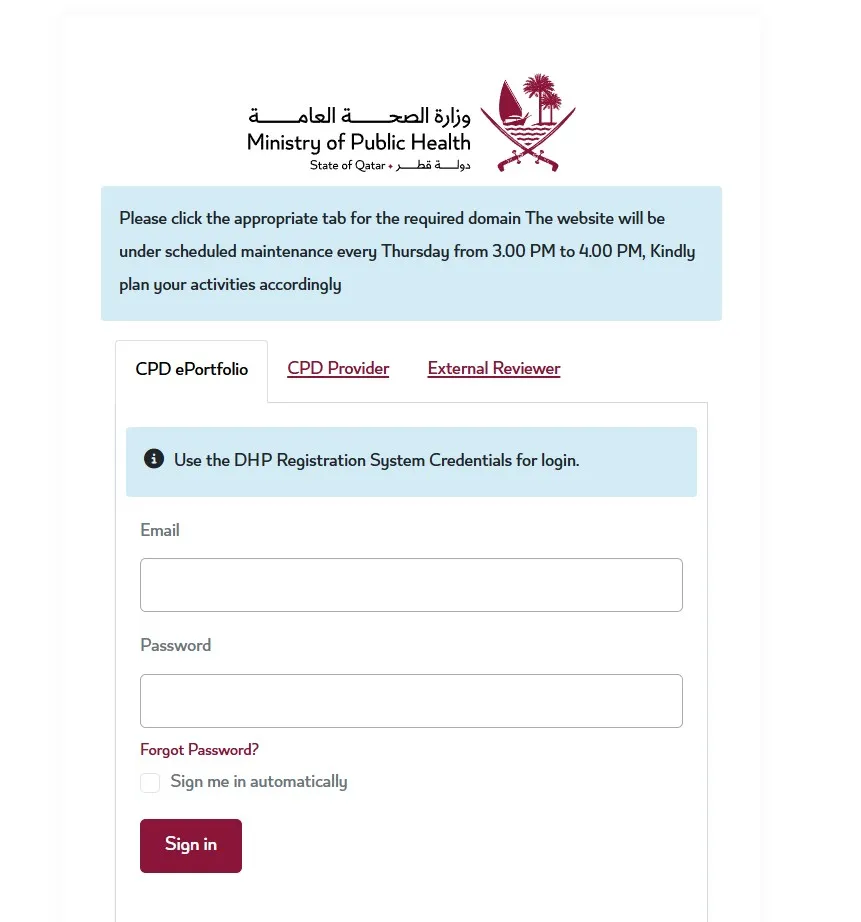
Visit the Ministry of Public Health Accreditation portal (CPD ePortfolio). Enter your registered email and password (Same username and password for DHP Portal), then click the Sign in button.
Step 2: Initiate a New CPD Record
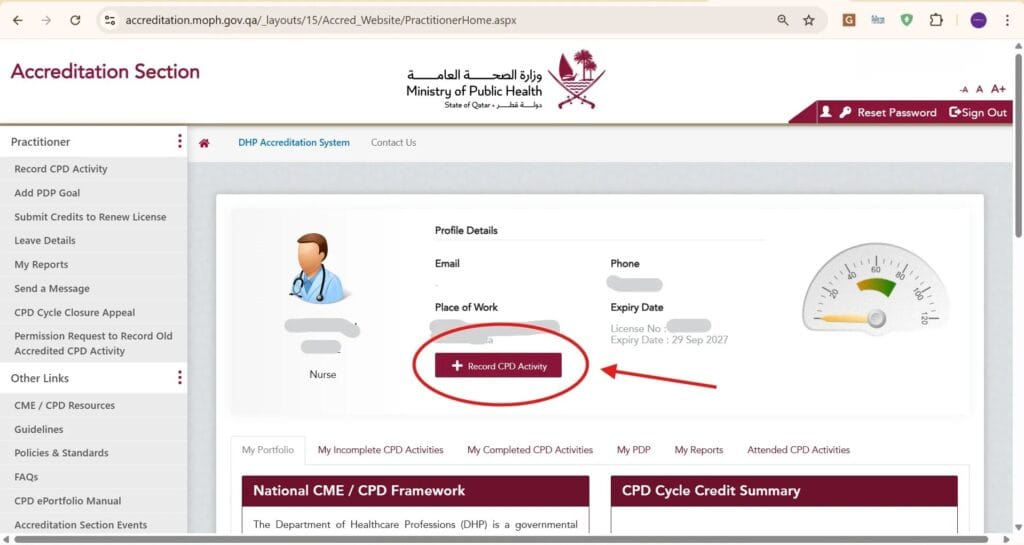
Once logged in, you will land on your Practitioner Dashboard. Look right below your profile details (Place of Work, Expiry Date, etc.) and click the maroon + Record CPD Activity button.
Step 3: Select the Category and Location “Others”
This is the most important step for external certificates. Fill out the top section of the form:
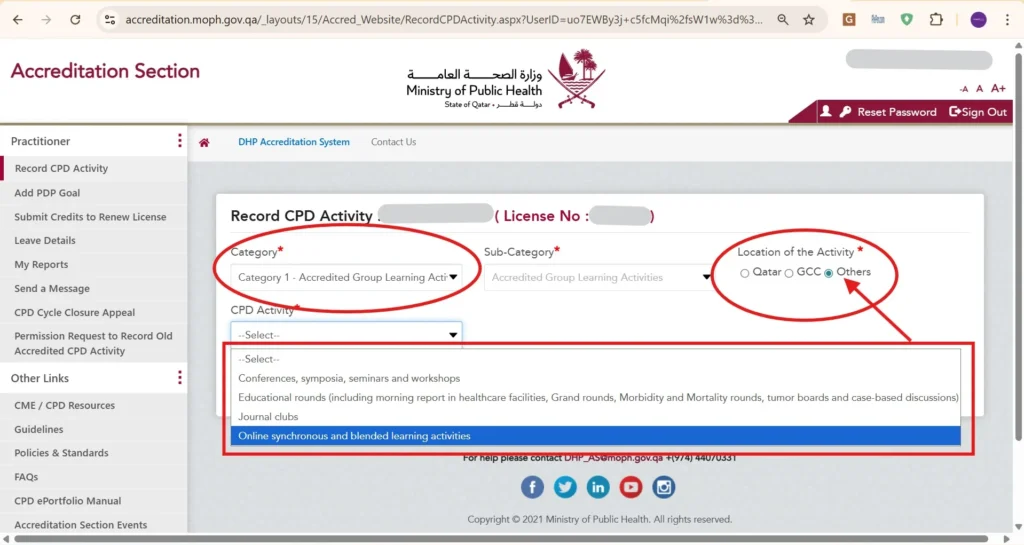
- Category: Select “Category 1 – Accredited Group Learning Activities” from the dropdown.
- Location of the Activity: Select Others (Do not select Qatar or GCC).
- CPD Activity: Choose the specific type of activity from the dropdown menu (for example, “Online synchronous and blended learning activities”).
Step 4: Fill in the Activity Details and Reflection
Continue down the form to provide the specifics of your course:
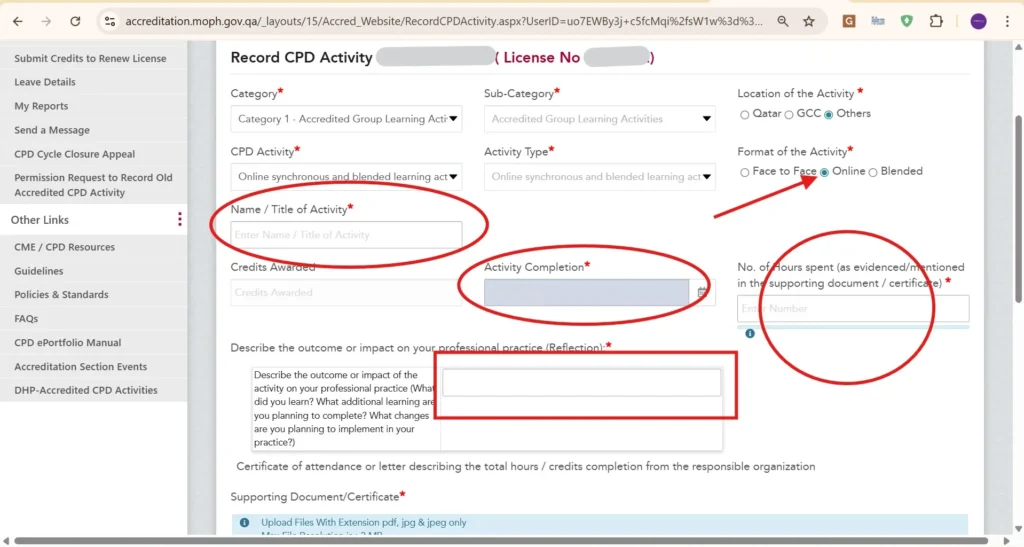
- Format of the Activity: Choose how you attended (e.g., Face to Face, Online, or Blended).
- Name / Title of Activity: Type the exact name as it appears on your certificate.
- Activity Completion: Use the calendar tool to enter the date you finished the course.
- No. of Hours spent: Enter the exact number of credit hours awarded on your certificate.
- Reflection: In the text box provided, describe the outcome or impact the activity will have on your professional practice.
This is very crucial part, if you leave Reflection Box blank the submission will get rejected 100% and don’t leave it with single words like “excellent or Great”, fill it properly. At least 200 Letters.
Step 5: Upload Your Certificate
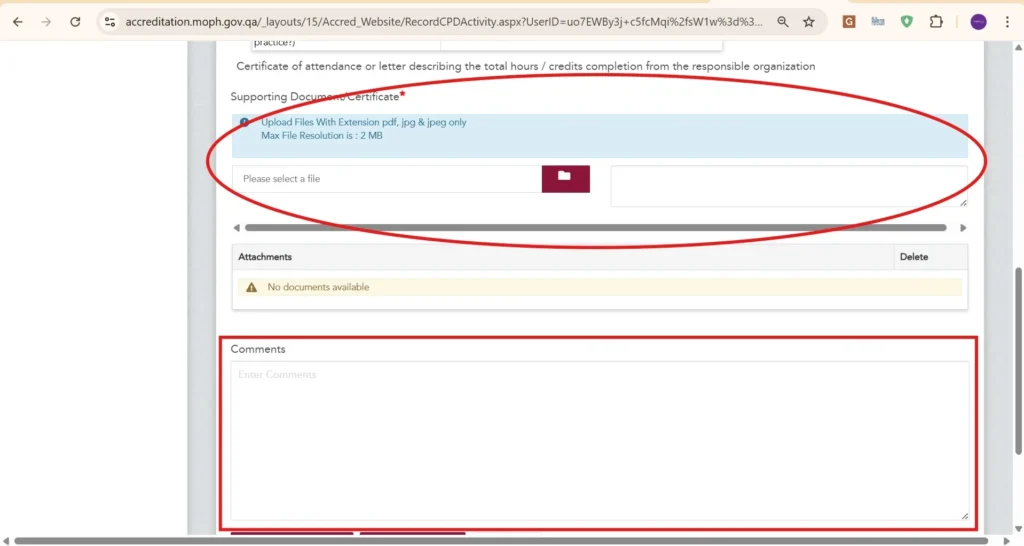
Scroll down to the “Supporting Document/Certificate” section.
Click the folder icon to browse your computer or device and attach your certificate file (remember: 8 letters are allowed for filename; without space or special character. max 2 MB, PDF/JPG/JPEG only).
Finally, you can add any extra notes in the Comments box at the bottom before submitting your record for approval.
If you’re also looking for professional support to manage your healthcare licensing and registration in Qatar, Meem Business Services offers expert guidance every step of the way